If you're planning to publish your app on the Apple App Store, you'll need to sign up for an Apple Developer Account. Below is a simplified, step-by-step guide to help you through the process.
Go to the Apple Developer registration page:
https://developer.apple.com/register/
Please copy this link & use it
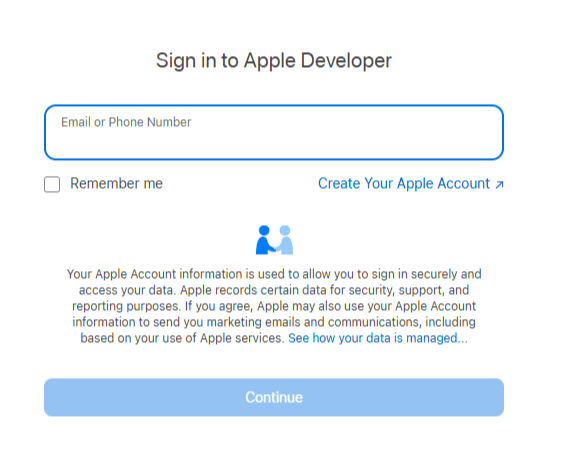
Enter email or phone number to represent an Apple ID.
In the Password box, enter a password.
If you haven't got an Apple ID yet, click the Create Your Apple Account button.
The page appears as shown in the figure below:
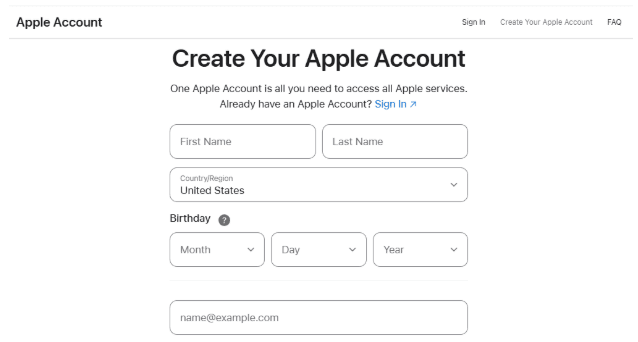
Fill in all the required details and click the Continue button.
You'll receive a verification code in your email, and a Verification dialog box appears, as shown in the following figure:
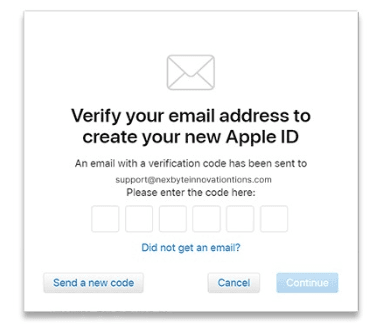
Enter the code on the verification screen.
Once verified, click the Continue button to proceed.
That's it! Your Apple Developer account is created. Go-Ahead.
After your Apple ID is active, you can enroll in the Apple Developer Program. To list the company name as the seller on the App Store, the company must be recognized as a legal entity in its country.
Go to https://developer.apple.com/enroll/ or click to Join the Apple Developer Program
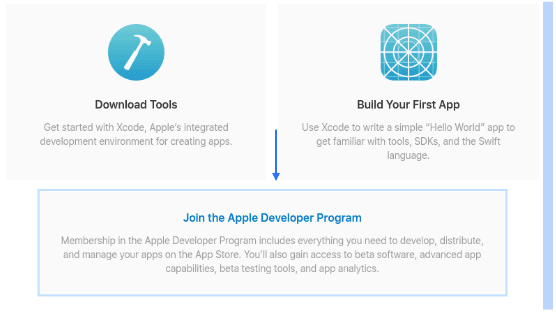
Click on Enroll button.

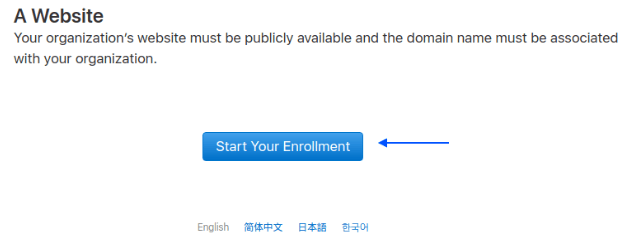
Click on the Start Your Enrollment button.
Fill in your personal or company details as required and click Continue
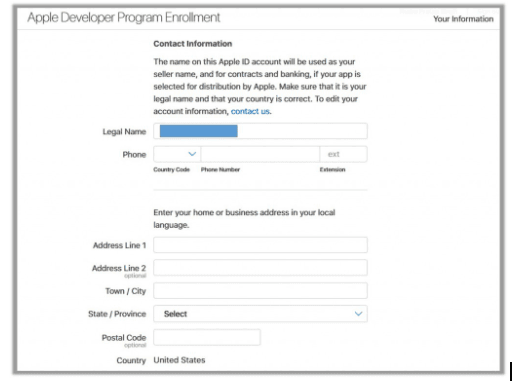
The page appears as shown in the following figure:
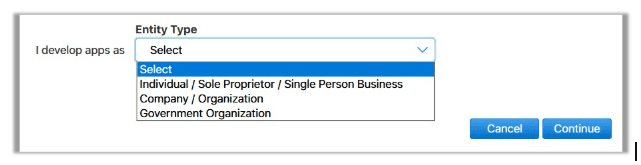
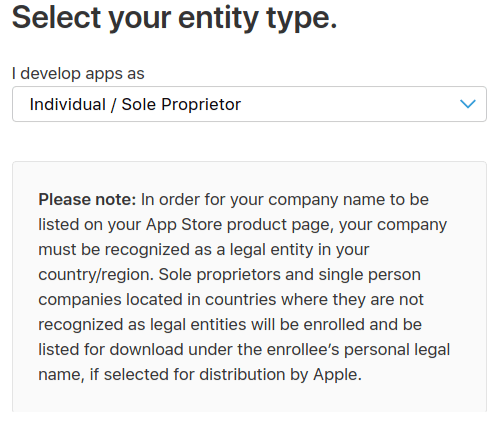
In the Entity Type list, select the required option.
Note: If the users select Individual / Sole Proprietor then a Note appears as shown in the following figure:
Scroll down and agree to the Apple Developer Program License Agreement.
The page appears as shown in the following figure:

Click on the Continue button.
Once the enrollment information is verified and the users are agreed to the associated program license agreement, they can purchase their membership.
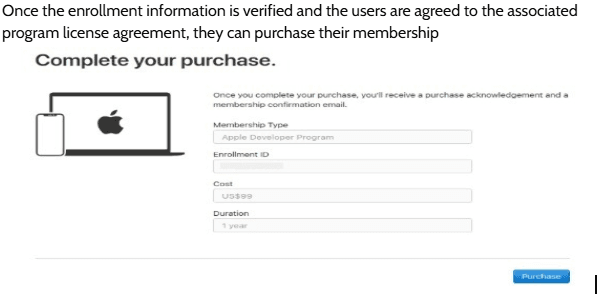
Enter the payment details to complete the purchase on the Apple Online Store. Once the purchase is completed, a purchase confirmation from the Apple Online Store and an activation confirmation from Apple Developer Program Support is sent to the user through email.
Check the email and enter the verification link sent in the email. The account is activated.
Tip: To check the status of your enrollment, sign in to your account (https://developer.apple.com/account/) on the developer website with the Apple ID you used to enroll.