
Firebase provides backend services for your mobile and web applications. Follow this guide to create a Firebase project and grant access to our team for seamless integration.
Open Firebase Console
Sign In
Sign in using your Google account (Gmail/Google Workspace)
Get Started
Click Get Started (if it's your first time) or go directly to the Firebase Console
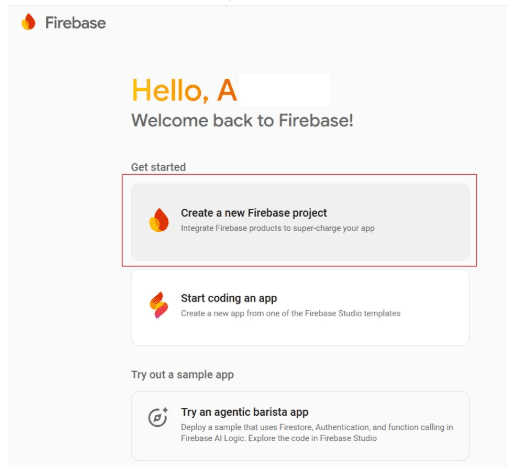
Add Project
In the console, click Add Project
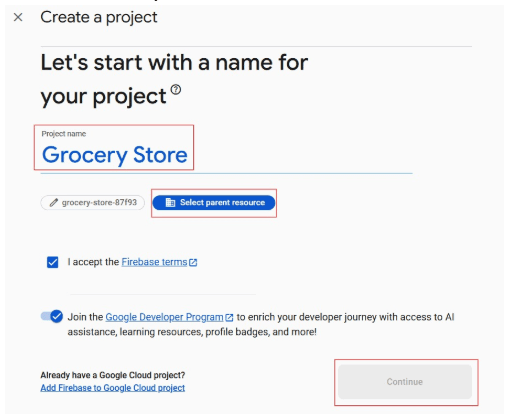
Enter Project Name
Enter a Project Name (e.g., Grocery Store)
Select Project ID
Select your Project ID / Parent resources
Accept Terms
Check the Firebase Terms and click on Continue
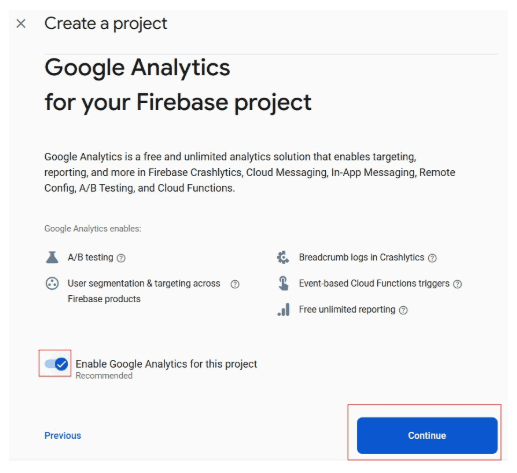
Enable Google Analytics
Choose whether to enable Google Analytics (recommended for app insights) and click on Continue
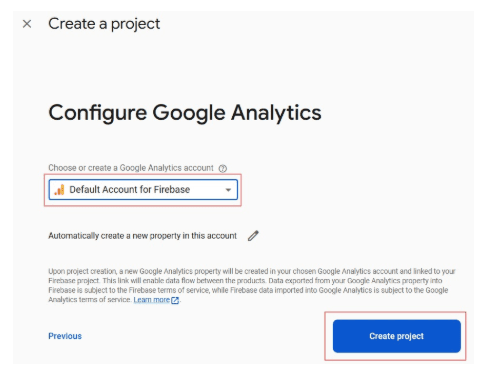
Google Analytics Account
Choose or create a Google Analytics account and click Create Project and wait for setup to complete
Wait for Creation
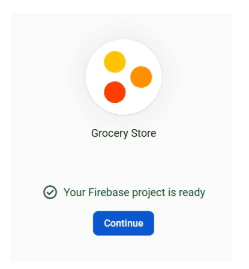
Wait for the project to be created and then click Continue
Open Your Project
In the Firebase Console, open your newly created project
Access User Settings
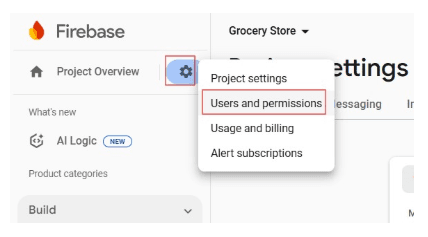
Click the Settings gear icon (⚙️) in the left menu and select Users and Permissions
Add Member
Click Add Member
Enter Member Details
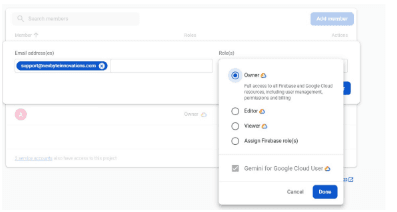
Enter the email address: support@nexbyteinnovations.com
Select the role as Owner
Confirm Invitation
Click Done to confirm
Invitation Sent Successfully!
The invited member will receive an email invitation. Once accepted, they can access the project.