Google Play Console Developer Account Enrollment Guide
1
Choose Your Account Type
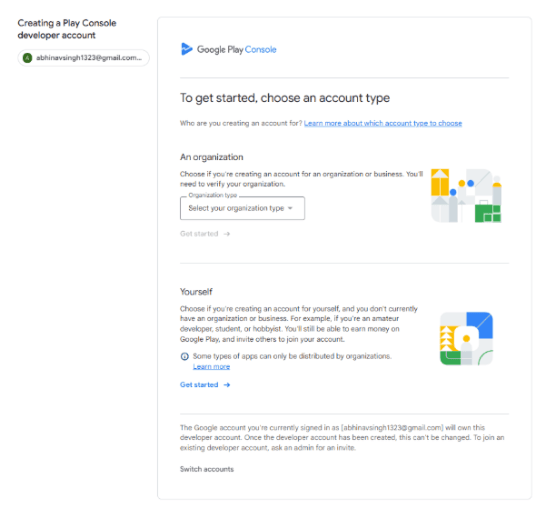
When enrolling, you must decide between a Personal Account and an Organization Account.
✓Personal Account
- Best for individual developers or freelancers.
- Requires: government ID, personal email, phone number, and payment method.
- Simpler setup, faster approval.
✓Organization Account
- Best for companies, startups, or teams.
- Requires:
- Legal business name
- Business address and website
- Business contact email and phone
- May require D-U-N-S number for verification (must match Dun & Bradstreet records)
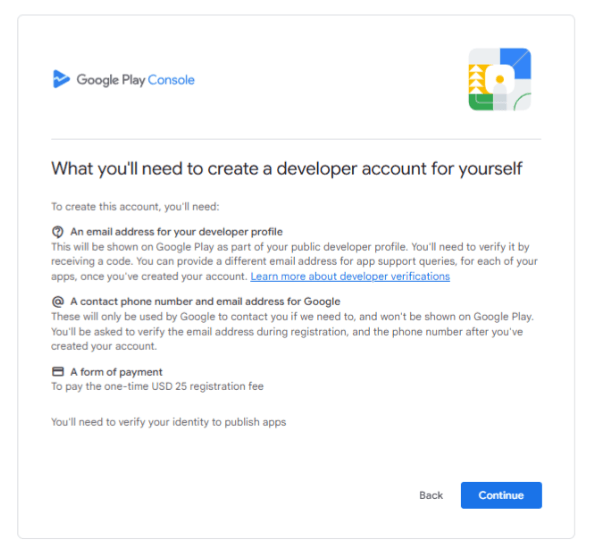
To create your Google Play Console account, you need to provide the following:
📧Email Address
- Use a valid Google (Gmail) account to sign in.
- This email becomes your permanent Play Console login.
📱Contact Phone Number
- Enter an active phone number during setup.
- Verify it using the OTP sent by Google.
💳Payment Method
- Pay the one-time $25 USD fee.
- Use a valid credit or debit card (online payments enabled).
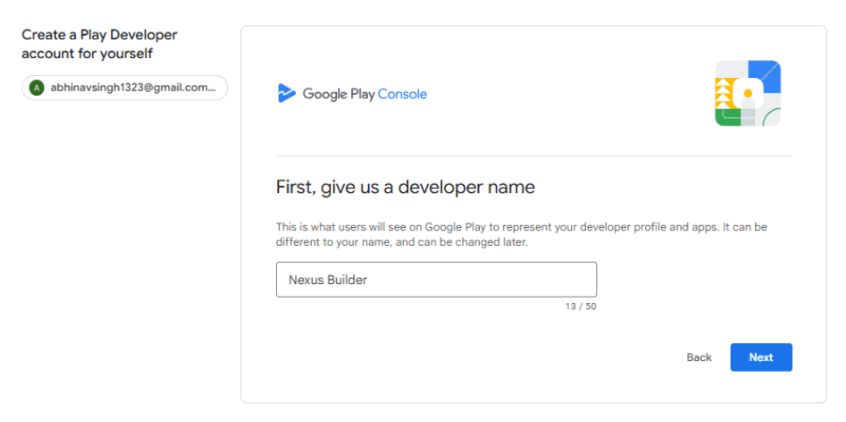
- In the Developer name field, type the name you want shown on the Play Store.
- This can be your personal name (for individual accounts) or a brand/business name (for organization accounts).
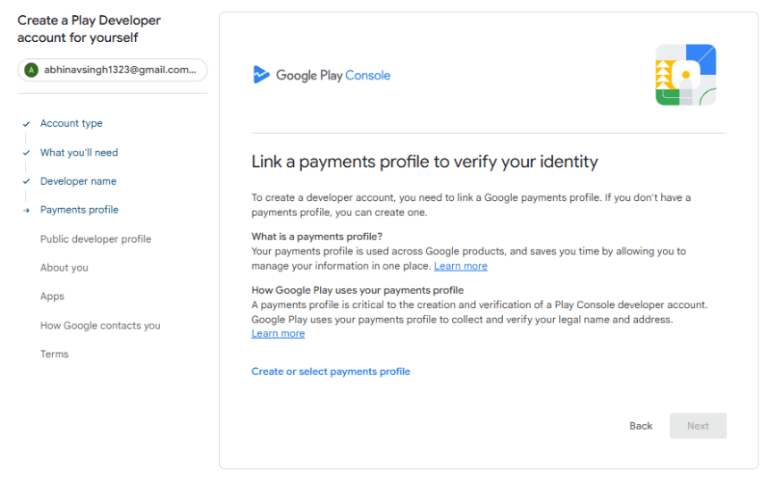
To complete your Play Console setup, you need to create or link a payments profile:
Create or Link Profile
- Go to Setup → Payments profile in Play Console.
- Choose Individual or Business.
Enter Details
- Add your legal name, address, email, and phone number.
- Details must match your ID or business documents.
Add Payment & Verify
- Pay the $25 USD fee with a valid credit or debit card.
- Google uses this profile to verify your identity.
5
Public Developer Profile
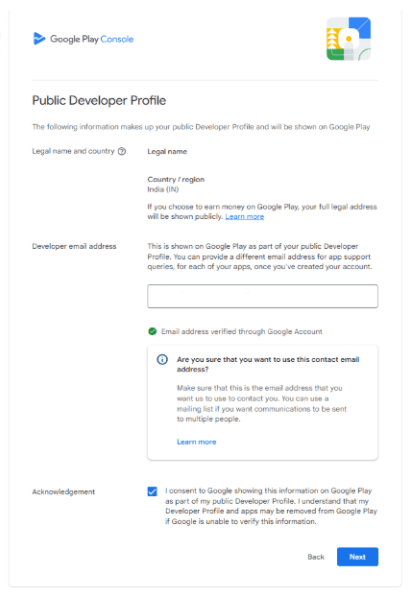
To display your developer information publicly on Google Play, complete the following steps:
Enter Legal Information
- Provide your full legal name.
- Select your country/region (e.g., India – IN).
Add Developer Email Address
- Enter your contact email.
- Verify the email address via Google's confirmation link/OTP.
Consent & Acknowledge
- Review the displayed information.
- Tick the box to consent to Google showing this information publicly on Play Store.
- Confirm to complete your Public Developer Profile setup.
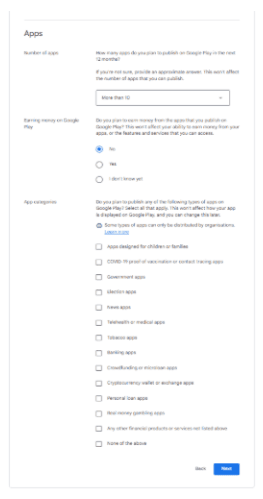
Provide information about the apps you plan to publish and your monetization preferences:
Number of Apps
- Answer: How many apps do you plan to publish in the next 12 months?
- Options: 1–2, 3–10, or More than 10 (approximate answer, does not limit you).
Earning Money
- Select whether you plan to earn money from your apps.
- Yes → If you will publish paid apps or use in-app purchases/ads.
- No → If all your apps will be free with no monetization.
- I don't know yet → If you are undecided (does not restrict future monetization).
App Categories
- Choose the categories that best describe the type of apps you plan to publish (e.g., Education, Shopping, Games, Productivity).
- You can assign specific categories later for each app when creating listings.
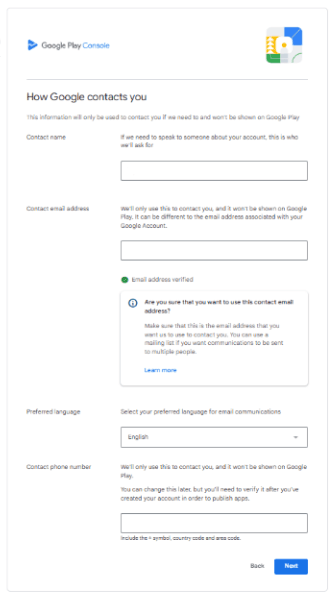
Provide accurate contact information so Google can reach you regarding your account:
Contact Name
- Enter the full name of the person Google should reach out to regarding your account.
Contact Email Address
- Provide a valid email address (different from your Google Account if preferred).
- This email is used only by Google and is not shown publicly.
Preferred Language
- Select your language for Google communications (e.g., English).
- All emails and notifications from Google will use this language.
Contact Phone Number
- Enter a valid phone number in international format (e.g., +91 9876543210).
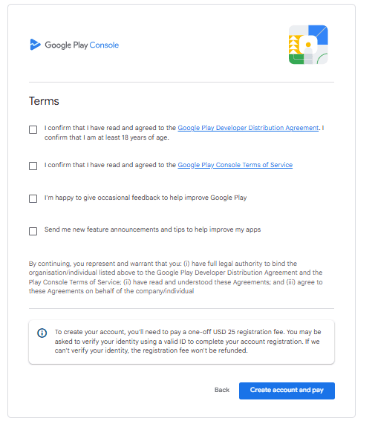
Review and accept the Google Play Developer Distribution Agreement (DDA) to proceed with account creation:
Review the Developer Distribution Agreement
- Read the Google Play Developer Distribution Agreement (DDA) carefully.
- It outlines your responsibilities as a developer.
- Google's policies on publishing and distributing apps.
- Revenue sharing, payments, and refunds.
- Compliance with content, privacy, and user data rules.
Accept the Terms
- Tick the checkbox confirming you agree to the Developer Distribution Agreement.
- Acknowledge that violating the terms may lead to suspension or termination of your account.
Confirm and Proceed
- After acceptance, continue with the next steps of account creation.
- Acceptance is mandatory — without it, your developer account cannot be created.