This guide will help you locate and download the necessary configuration files from Firebase for your mobile app development and push notification setup.
The Sender ID is required to configure push notifications. It is the same as your Firebase Project Number.
Log in to Firebase Console
Go to https://console.firebase.google.com
Sign in with the Google account associated with your project.
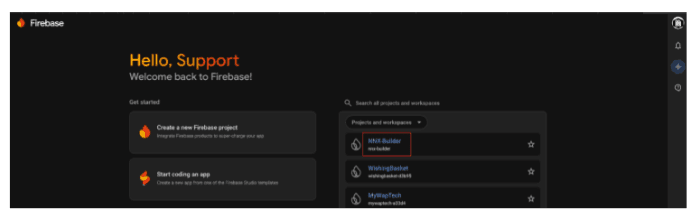
Select Your Project
From the dashboard, click on the project you want to configure.
Open Project Settings
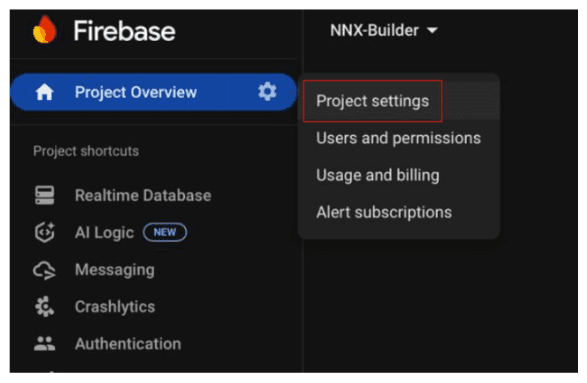
In the left menu, click on the gear icon ⚙️ next to Project Overview.
Select Project settings.
Go to Cloud Messaging Tab
Inside Project settings, navigate to the Cloud Messaging tab.
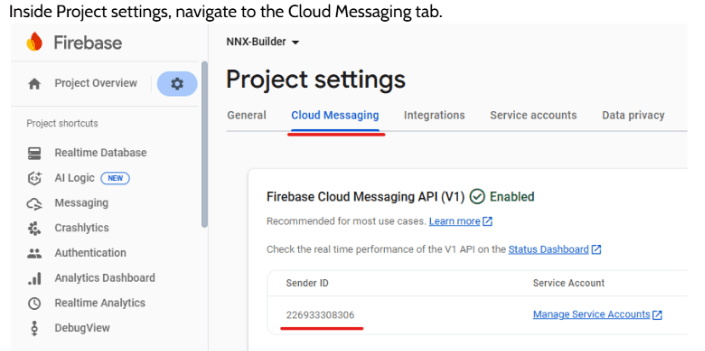
Copy the Sender ID number and share it with us through email at support@nexbyteinnovations.com
Follow these steps to generate and download the required JSON configuration file from Firebase:
Log in to Firebase
Go to Firebase Console
Log in with the Google account linked to your Firebase project.
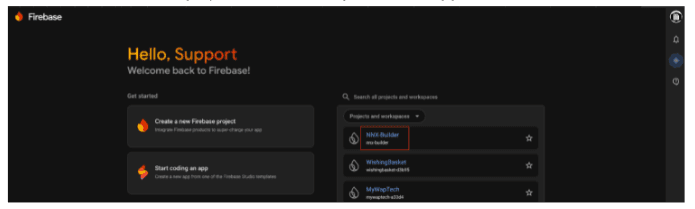
Select Your Project
From the Firebase dashboard, click on the project you want to use.
This should be the same project connected to your mobile app.
Open Project Settings
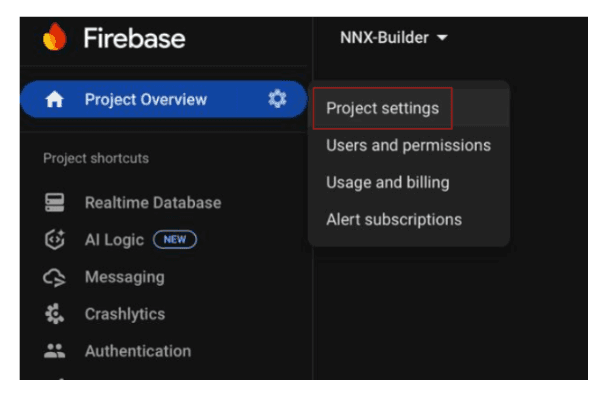
In the left-hand menu, click the ⚙️ Settings (gear icon) next to Project Overview.
Choose Project settings from the dropdown.
Navigate to Service Accounts
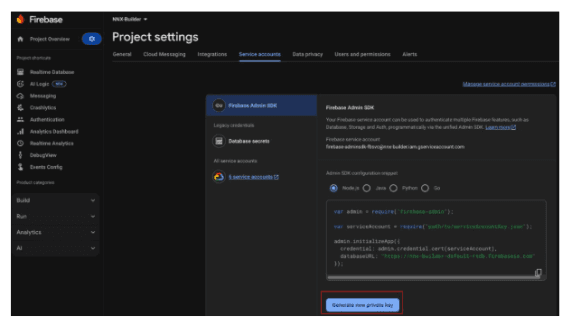
In the Project Settings page, select the Service accounts tab.
Click on Generate new private key under the Firebase Admin SDK section.
Generate & Download JSON File
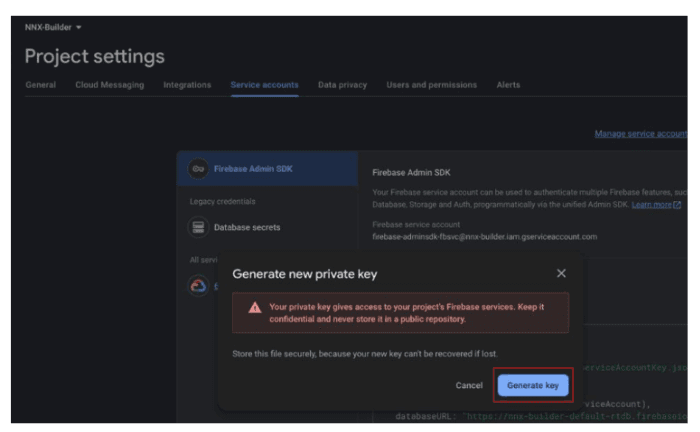
A pop-up will appear asking for confirmation. Click the Generate key.
The system will download a JSON file (your private key file) to your computer.
Share the File
Share the downloaded files with us through email at support@nexbyteinnovations.com
Navigate to General Settings
In the Project Settings page, select the General tab.
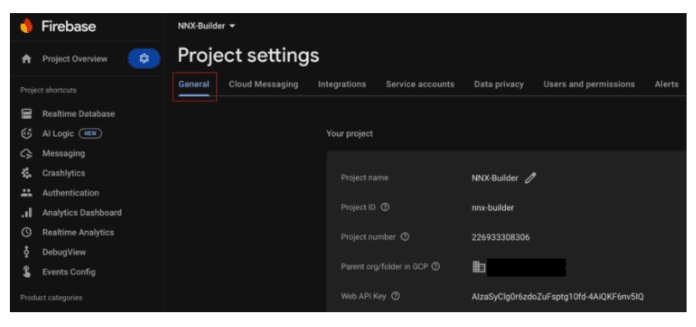
Find Your Apps Section
In the General Settings page, scroll down the page a little bit.
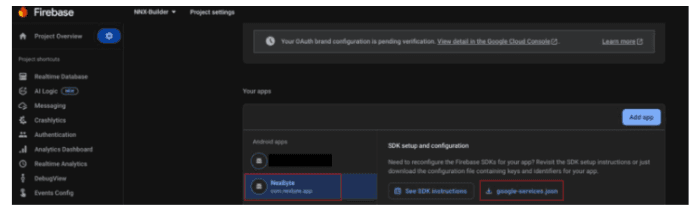
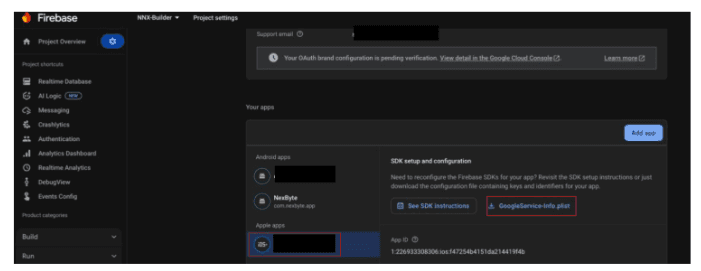
There you will find the Android and iOS App listed under Your Apps Section.
Download Android Config File
Please select the Android app and then click on the google-services.json file to download it on your system.
Download iOS Config File
Now please select the iOS app and then click on the .plist file to download it on your system.
Share the Files
Share the downloaded files with us through email at support@nexbyteinnovations.com
your-project-name-xxxxx.json